Hi All,
I was asked by many queries how to find the person who deleted the site, list, library. list column etc... in a sharepoint site.
Today i found the solution.
Configure your IIS logs for all the sites on Hourly basis at IIS - website - Right click - properties- Website - Enable logging - properties ( assgin an easy path) -Advanced- Hourly.
TO find th eperson who deleted, find the edit page in the IIS logs and find the name added to it.......
site >> "/_layouts/deleteweb"
list >> "/_layouts/editpage"
list column >> "_layouts/FldEditEx.aspx" etc....
Tuesday, November 3, 2009


Thursday, October 15, 2009
Archive contents from Team Discussion
Steps : To archive the contents from the Team Discussion
1. Open 'Team Discussion'
2. Create a new view from 'Settings' - New View
3. In 'Columns'- Check the 'Body' field- OK
4. Open the newly created view and from 'Actions' select 'Export to spread sheet'.
5. Open the file in Excel and save it to your archive destination.
Note: The above steps will not save any attachments in the mails, For archiving the attachments.
1. On you computer - Open 'My Network Places'.
2. Under 'Network Tasks' click on Add a network place
3. Click 'Next'- Select Choose another service provider option - Next
4. Add the above url of the 'Team Discussion' as network address- Next
5. Give a new name - Next - Finish
6. A new web page will be opened with Folders for each mail.
7. Select the folders with the attachment and save them. ( The folders name will be same as the subject of the mail)
1. Open 'Team Discussion'
2. Create a new view from 'Settings' - New View
3. In 'Columns'- Check the 'Body' field- OK
4. Open the newly created view and from 'Actions' select 'Export to spread sheet'.
5. Open the file in Excel and save it to your archive destination.
Note: The above steps will not save any attachments in the mails, For archiving the attachments.
1. On you computer - Open 'My Network Places'.
2. Under 'Network Tasks' click on Add a network place
3. Click 'Next'- Select Choose another service provider option - Next
4. Add the above url of the 'Team Discussion' as network address- Next
5. Give a new name - Next - Finish
6. A new web page will be opened with Folders for each mail.
7. Select the folders with the attachment and save them. ( The folders name will be same as the subject of the mail)
Wednesday, September 9, 2009
Update Global Navigation Link
I was looking for a way to update the global navigation breadcum in a sharepoint site and doesn't found any valid solutions. 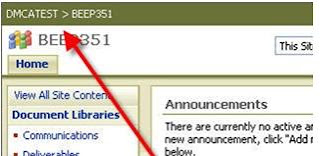
Today i got a chance to refer a white paper published by microsoft which gives the steps which many may have noticed.
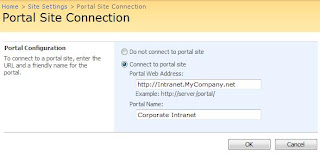

You can edit the portal site link at
Site Action site settings --> Under Site Administration -->Portal Site Connection.
Cheers!
Wednesday, July 1, 2009
Remove #NUM from the list data difference
To remove the #NUM from the resilt of taking difference between two sharepoint column values.
Here is a scenario :
There are two dates , date1 and date 2
date 2 - date1 will give result if date 2 is after date1, if not it will give the result #NUM
This can be resolve by using this formula :
=IF(ISERROR(DATEDIF(Date1,Date2,"d")), -DATEDIF(Date1,Date2,"d"))
If the difference between the two dates is negative ( ie, Date1 - Date2 = -ve value ) then it will return -(Date2-Date1)
for eg : 2008/02/02 - 2008/02/01 will give 1 as value, but 2008/02/01 - 2008/02/02 will give #NUM as result normally, but the above calculated will give -1 as result.
Cheers!!
Here is a scenario :
There are two dates , date1 and date 2
date 2 - date1 will give result if date 2 is after date1, if not it will give the result #NUM
This can be resolve by using this formula :
=IF(ISERROR(DATEDIF(Date1,Date2,"d")), -DATEDIF(Date1,Date2,"d"))
If the difference between the two dates is negative ( ie, Date1 - Date2 = -ve value ) then it will return -(Date2-Date1)
for eg : 2008/02/02 - 2008/02/01 will give 1 as value, but 2008/02/01 - 2008/02/02 will give #NUM as result normally, but the above calculated will give -1 as result.
Cheers!!
Tuesday, June 23, 2009
Calculate age in sharepoint list
Hi All,
i started trying to answer a question in mocrosoft forums which has gone a long way today and this is my third editing of the post.
How to calculate age in a sharepoint list with only date of birth available.
it can be done with the formula listed below :
=FLOOR((DATEDIF(DOB,Todaydate,"d")-(ROUND(((YEAR(Todaydate))-YEAR(DOB))/4,0)))/365,1)
Now i will explain what the fields are:
DOB- date of birth Field in the sharepoint list.
Todaysdate - gives you the date today but need to carry difficult step to get it. you cannot get todays date directly anywhere in sharepoint list, thats sure.
i got it via, the steps given at :
http://abstractspaces.wordpress.com/2008/05/19/use-today-and-me-in-calculated-column/
now what the formula does :
First it takes the difference between todays date and DOB. then substracts the no of leap years from it, divide it by 365 and took a round value.
Cheers!!!
i started trying to answer a question in mocrosoft forums which has gone a long way today and this is my third editing of the post.
How to calculate age in a sharepoint list with only date of birth available.
it can be done with the formula listed below :
=FLOOR((DATEDIF(DOB,Todaydate,"d")-(ROUND(((YEAR(Todaydate))-YEAR(DOB))/4,0)))/365,1)
Now i will explain what the fields are:
DOB- date of birth Field in the sharepoint list.
Todaysdate - gives you the date today but need to carry difficult step to get it. you cannot get todays date directly anywhere in sharepoint list, thats sure.
i got it via, the steps given at :
http://abstractspaces.wordpress.com/2008/05/19/use-today-and-me-in-calculated-column/
now what the formula does :
First it takes the difference between todays date and DOB. then substracts the no of leap years from it, divide it by 365 and took a round value.
Cheers!!!
Monday, June 22, 2009
_530.jpg)
Wednesday, March 11, 2009
Content Query Webpart customization
In sharepont if you want to show the contacts from another site in your site the best option is to go for content query web part , the advantage is that when ever a change happens to contact in the site will get autoupdate in the CQWP.
When you try to add the 'Contact' list from another site, You will come across one constrain usually, ie. the display of div tags below the contact name.
You don't have to go for any other editors to sort out the issue.
One simple solution is to play with the 'Presentation' of the CQWP page.
You can remove the tags div easily by changing the CQWP style as shown below.
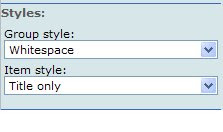
And what if you want to show all the fields other than the 'Title: Last Name' field.
You have got 2 options:
1. Open Sharepoint Designer and edit the CQWP.
2. Open 'Managed Contents and structure' option and edit the style library - item style.
Refer for details at:
http://www.helloitsliam.com/archive/2007/07/19/moss2007-%E2%80%93-show-multiple-columns-in-cqwp.aspx
Happy Customization!!!!!
When you try to add the 'Contact' list from another site, You will come across one constrain usually, ie. the display of div tags below the contact name.
You don't have to go for any other editors to sort out the issue.
One simple solution is to play with the 'Presentation' of the CQWP page.
You can remove the tags div easily by changing the CQWP style as shown below.

And what if you want to show all the fields other than the 'Title: Last Name' field.
You have got 2 options:
1. Open Sharepoint Designer and edit the CQWP.
2. Open 'Managed Contents and structure' option and edit the style library - item style.
Refer for details at:
http://www.helloitsliam.com/archive/2007/07/19/moss2007-%E2%80%93-show-multiple-columns-in-cqwp.aspx
Happy Customization!!!!!
Subscribe to:
Posts (Atom)

